ZTNA - Setup Your First Peers
Getting started setting up ZTNA
Prerequisites
- Two hosts running Windows, macOS, Linux, Android, or iOS
- Administrator credentials for both hosts
- Internet connection on both hosts.- For the best proof of concept, the hosts should not be on the same network. For example, your local machine and a host you can manage via RMM at another location.
Identity Provider Usage - Creating Users
- E-mail
- User Name
- Given Name (First Name)
- Family Name (Last Name)
- Check Email Verified
(You can setup your own SMTP to enable email invites, password changes,
etc You can also integrate an SMS/Phone service via a service like
Twillio)
- Check Set Initial Password (You, or in the future your users, will change their password on first login)
Netbird Configuration Role Settings for you new User
- Login to the HOSTS URL (provided in the single use note via email) as user admin and elevate the new user to the role of Admin
- Choose Teams > Users > Click on your new account > Choose Admin > Save
Installing Client Peers (Hosts)
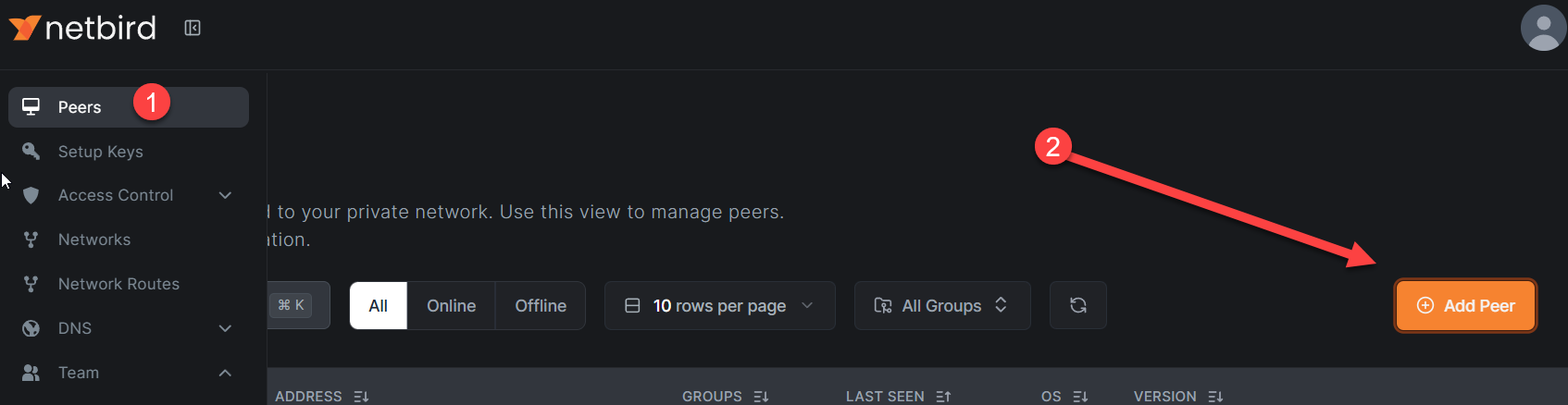
Connecting Your First Devices
After installing the Netbird client on your device:
-
Launch and Connect: Click the Netbird icon in your system tray (Windows/Mac) or menu bar and select "Connect"
-
Authenticate: A browser window will open automatically. Log in using your Zitadel email and password
-
Confirm Connection: After successful authentication, you'll see "Login successful" in the browser
-
Verify Status: The Netbird icon in your system tray should now show "Connected"
Your device is now assigned a Netbird IP address (in the
100.x.x.x range). You can view all connected peers and their assigned
IPs in the Netbird dashboard under the Peers page.
Testing Connectivity Between Peers
Once you have 2 or more peers connected:
- Open the Peers page in the Netbird dashboard to see the Netbird IP addresses
- From one device, open a terminal/command prompt
- Ping another peer using its Netbird IP: ping 100.x.x.x
- Successful ping responses confirm your secure mesh network is operational
Important: By default, the "Default Policy" in Access Control allows all peers to communicate with each other. You can customize access policies later based on your security requirements.
Installing on Headless Systems (Servers, Raspberry Pi, etc.)
For servers or systems without a desktop interface:
- In the Netbird dashboard, navigate to Setup Keys in the sidebar
- Click Create Setup Key
- Choose Single-use for security (one device per key) or Reusable if deploying multiple identical systems
- Copy the generated setup key
- On your headless system, run these commands:
Install Netbird: curl -fsSL https://pkgs.netbird.io/install.sh | sh
Connect using your setup key: netbird up --setup-key <YOUR_SETUP_KEY>
- The terminal will display "Connected" when successful
- The peer will appear in your Netbird dashboard's Peers page
Troubleshooting First Connection Issues
Client won't connect:
- Verify your firewall allows outbound UDP traffic on port 3478 (STUN/TURN)
- Some corporate networks block peer-to-peer traffic - Netbird will automatically fall back to relay servers
- Check the Netbird logs: Click the Netbird tray icon → Advanced → View Logs
Peers show as "Disconnected" in dashboard:
- Wait 30-60 seconds - initial connection can take a moment
- Ensure the device has internet connectivity
- Try disconnecting and reconnecting from the Netbird tray icon
Need detailed connection information: Run this command in your terminal to see full connection status: netbird status
This shows your Netbird IP, connection type (P2P direct or relayed), connected peers, and network routes.
Understanding Your Netbird Network
Peer-to-Peer Connectivity:
- Netbird creates direct encrypted connections between your devices when possible
- Traffic flows directly between peers - not through Uplevel infrastructure
- When direct P2P isn't possible (restrictive firewalls/NAT), connections automatically relay through Netbird's relay servers
Your Management URL:
- The "HOSTS URL" from your setup note is your Netbird management server
- Format: https://netbird.yourcompany.uplevelsystems.com
- This is where the --management-url flag points for CLI installations
- Only needed if you're doing manual/advanced installations
Next Steps
Now that you have your basic Netbird network running, we recommend reading through the official Netbird Getting Started Documentation to learn about the full range of features available. This will give you a solid foundation in:
- Creating network resources (subnets and specific hosts)
- Setting up routing peers for remote network access
- Configuring granular access control policies
- Adding DNS settings for hostname resolution within your network
- Understanding posture checks and security policies
After
you've explored the documentation, we're happy to provide a more
in-depth tour and help you configure advanced settings specific to your
environment.
Connecting your IdP (Google Workspace, Entra, Facebook, GitHub, etc) for SSO
- Primer on how to connect your IdP
Setting up SMTP for email validation
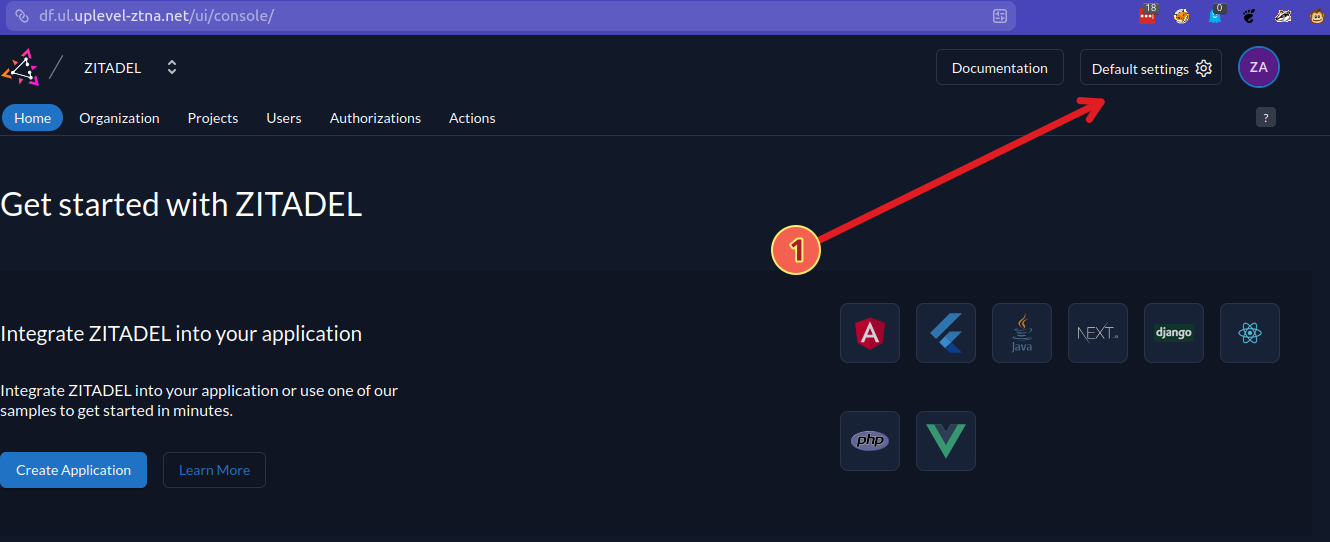
- Login to Zitadel - https://$your.domain.uplevel-ztna.net/ui/console as the admin user
- Click on Default Settings on the top right:
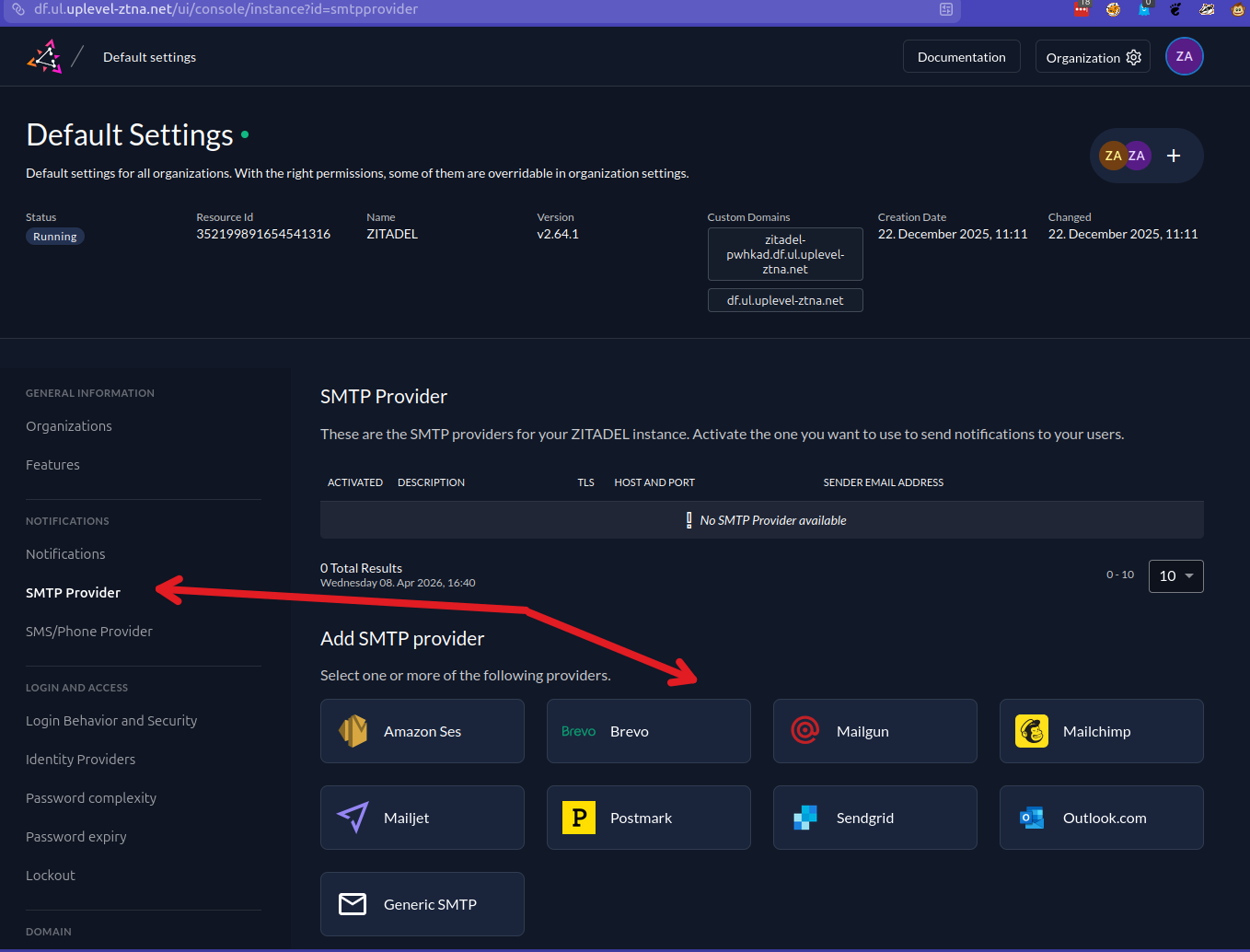
- On
the left navigation choose SMTP Provider
- Choose the SMTP
service provider you would like to use. (If you are using basic SMTP
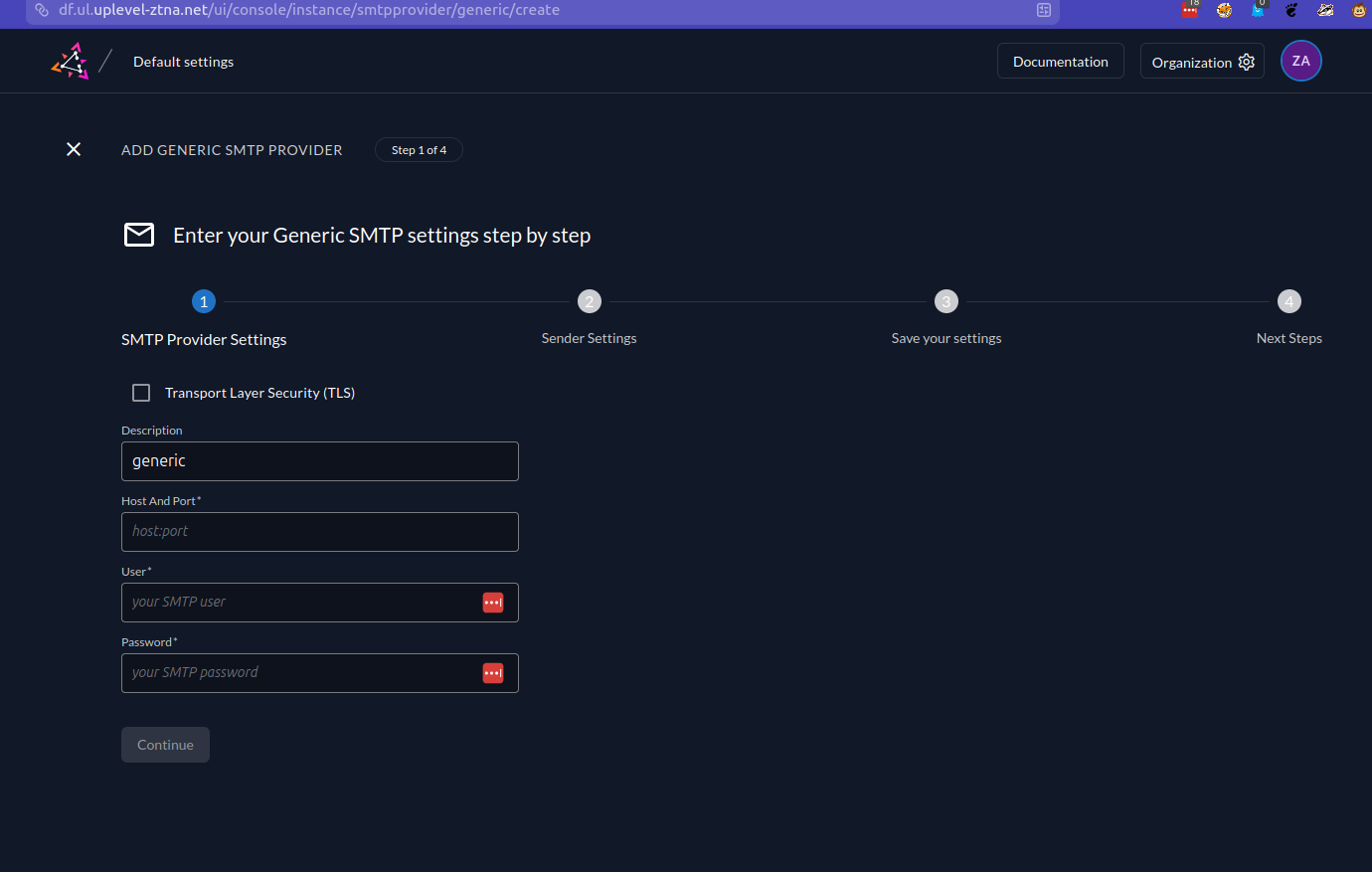
server settings choose Generic SMTP at the bottom left)
- Enter your SMTP server and credentials
We're actively working to streamline the ZTNA management experience. In the near future, both Zitadel (Identity Provider) and Netbird (ZTNA overlay) will be manageable directly from the Uplevel Portal through API integration, eliminating the need to log into multiple interfaces.
You'll always retain access to the advanced control panels with your admin credentials, allowing you to:
- Connect your own Identity Provider for SSO (Entra ID, Google Workspace, Auth0, Active Directory, etc.)
- Create complex ZTNA configurations and custom policies
- Take full advantage of both platforms' enterprise features
Our goal is to make standard, straightforward deployments simple to manage from the Uplevel Portal while preserving full administrative control for advanced use cases. This product is production-ready today, and upcoming portal integration enhancements will be deployed without disrupting existing environments.